

Your ServersCrest password is the one you use to sign in to this website. Changing it does not change your cPanel, DirectAdmin or email password.
Open this page on ServersCrest.
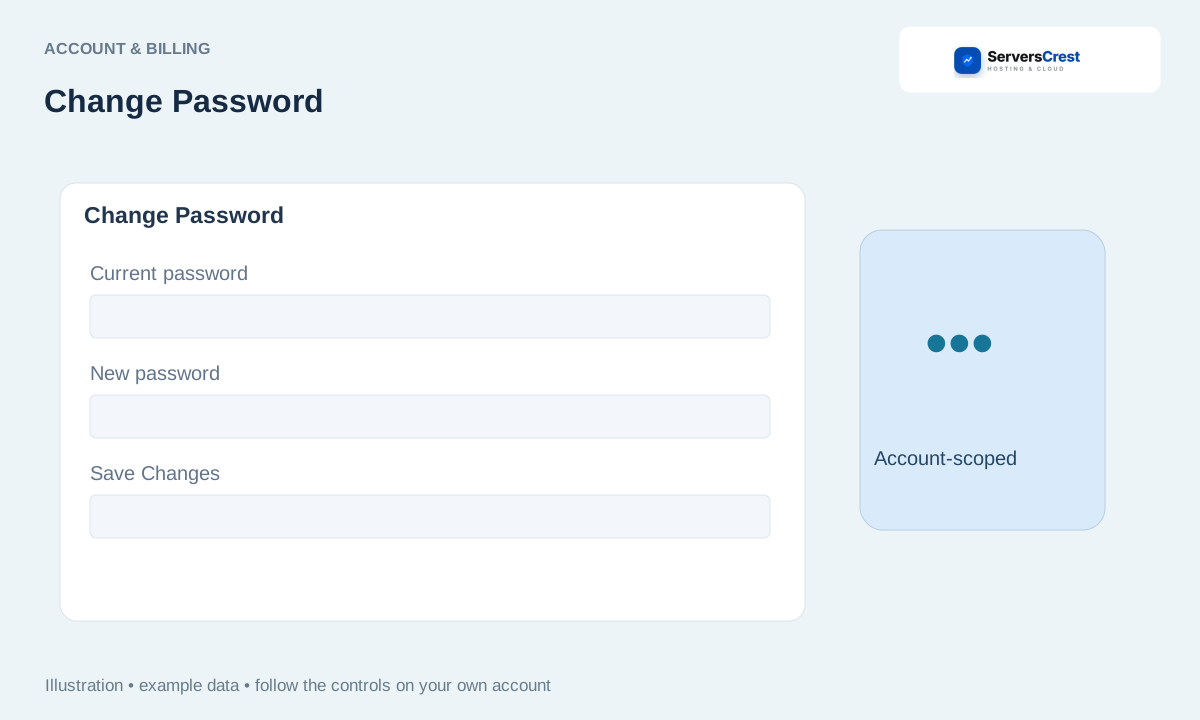
Choose reset or signed-in password change
While signed in, open Change Password and follow its current-password and confirmation fields. Enter the password you currently use for ServersCrest. Then enter your new password in both new-password fields; the two entries must match.
Save a strong new password and keep it in a password manager. Use a password you do not use for another website. Save it somewhere private before signing out.
If you cannot sign in, use Forgot Password on the login screen. Enter your account email on the reset page. Check the inbox for that address, including its spam folder.
Follow the reset email and test the new login. Open the latest reset message and follow the link. After saving the replacement, return to the ServersCrest login page and try it.
Find your way around your ServersCrest dashboard · Update your account and billing details
Need help with this? Send us a ticket and tell us which page you reached and what happened.