

Your product reseller profile contains the connection preference and API key used by your own WHMCS.
Open this page on ServersCrest.
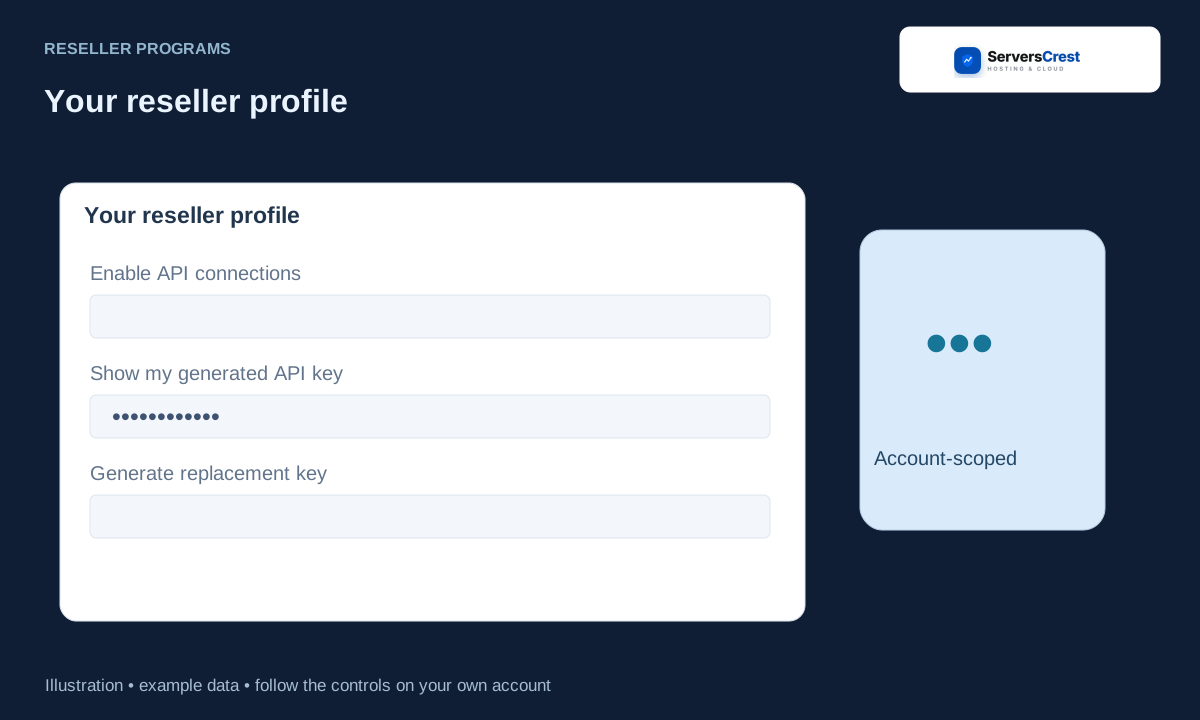
Edit Your reseller profile in Connection settings
In Product Reseller, click Connection settings and edit Your reseller profile. Use your business name and website. Allowed server IPs is for your WHMCS server outgoing addresses, not the IP of the person visiting your site.
Choose whether Enable API connections should be checked, then click Save profile & API preferences. Save the checkbox setting as well as the profile fields. Disabling API connections stops the connector from using this access.
To replace the key, find Rotate your key. Tick Revoke the current key and reconnect my WHMCS, then click Generate replacement key. Only rotate when you need a new key. The confirmation means the current key will stop working.
Copy the replacement into the connector settings in your own WHMCS and check the connection. Save the replacement in your own WHMCS, then check the connector. Generating a key does not itself import or update products.
Apply to become a domain reseller · Connect your WHMCS to domain reselling
Need help with this? Send us a ticket and tell us which page you reached and what happened.