

Add Funds lets you put credit into your ServersCrest account. For example, you can use available credit to pay for reseller orders.
Open this page on ServersCrest.
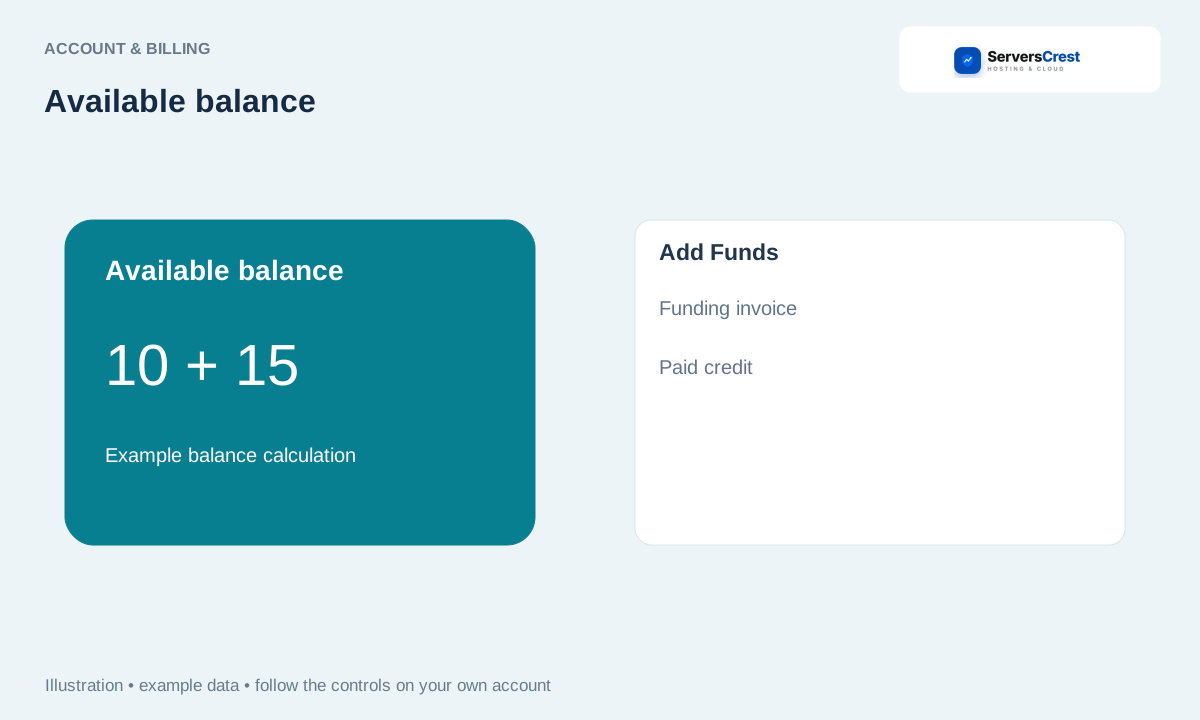
Find the dashboard balance and Add Funds
Sign in and find the balance card. The balance card shows the credit already available. An invoice you have not paid is not included in that balance.
Choose Add Funds and enter an amount within the displayed limits. Enter how much you want to add, using the minimum and maximum amounts shown on the page.
Review and pay the generated invoice. Opening an Add Funds invoice does not add the money yet. Choose a payment method and finish paying that invoice.
Check the paid invoice and updated balance before making a prepaid reseller purchase. Wait for payment to be recorded, then check the balance again. If the invoice is Paid but credit is missing, contact support with that invoice number.
Find your way around your ServersCrest dashboard · Update your account and billing details
Need help with this? Send us a ticket and tell us which page you reached and what happened.