

Open phpMyAdmin when you need to look inside a website database, export it or import a saved copy.
Open this page on ServersCrest.
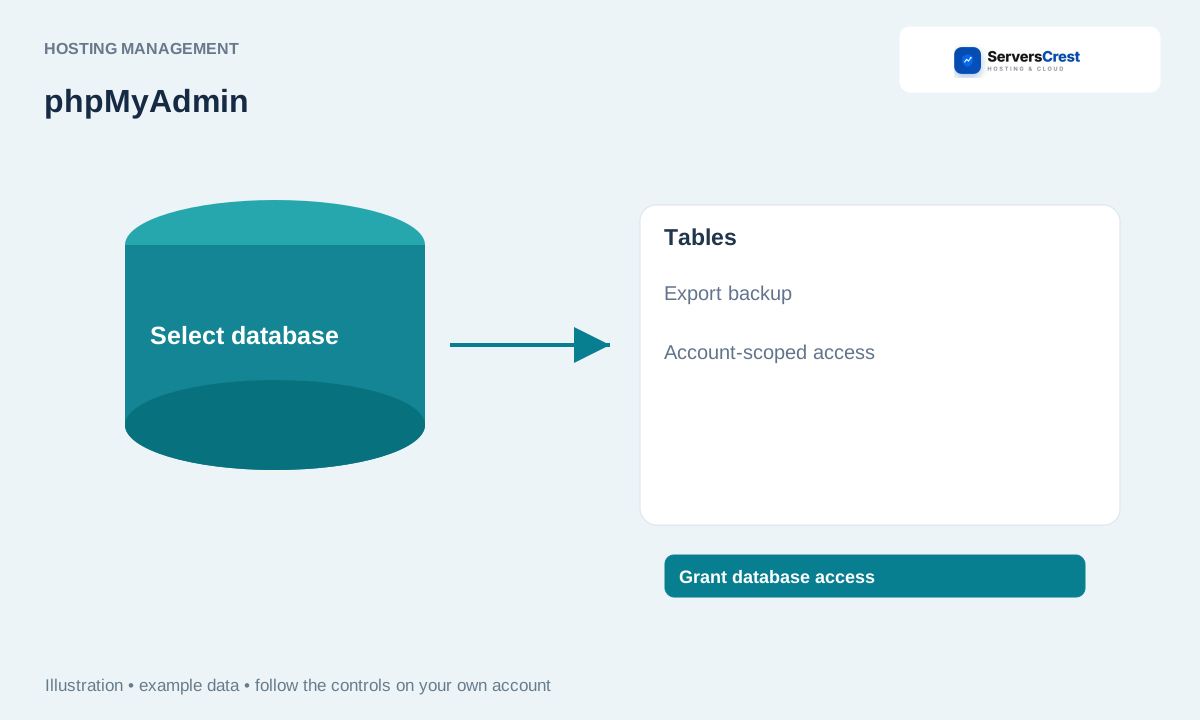
Open phpMyAdmin from Databases
Open the service and choose Databases. Choose the hosting account for that website, then open Databases.
Click Open phpMyAdmin if it is shown. Allow the new browser tab if it is blocked. If the button is missing, open the hosting panel and use its phpMyAdmin tool.
Select the database belonging to the website you intend to manage. Check the full database name in your website configuration if several names look alike.
Export a backup before an import, query or table change. Use Export to save the current database before changing it. An import or SQL query can change the live website immediately.
Log in to cPanel from your service page · Log in to DirectAdmin from ServersCrest
Need help with this? Send us a ticket and tell us which page you reached and what happened.