

You can browse and edit small website files from Files on your hosting service. Keep a downloaded copy of a file before you replace its contents.
Open this page on ServersCrest.
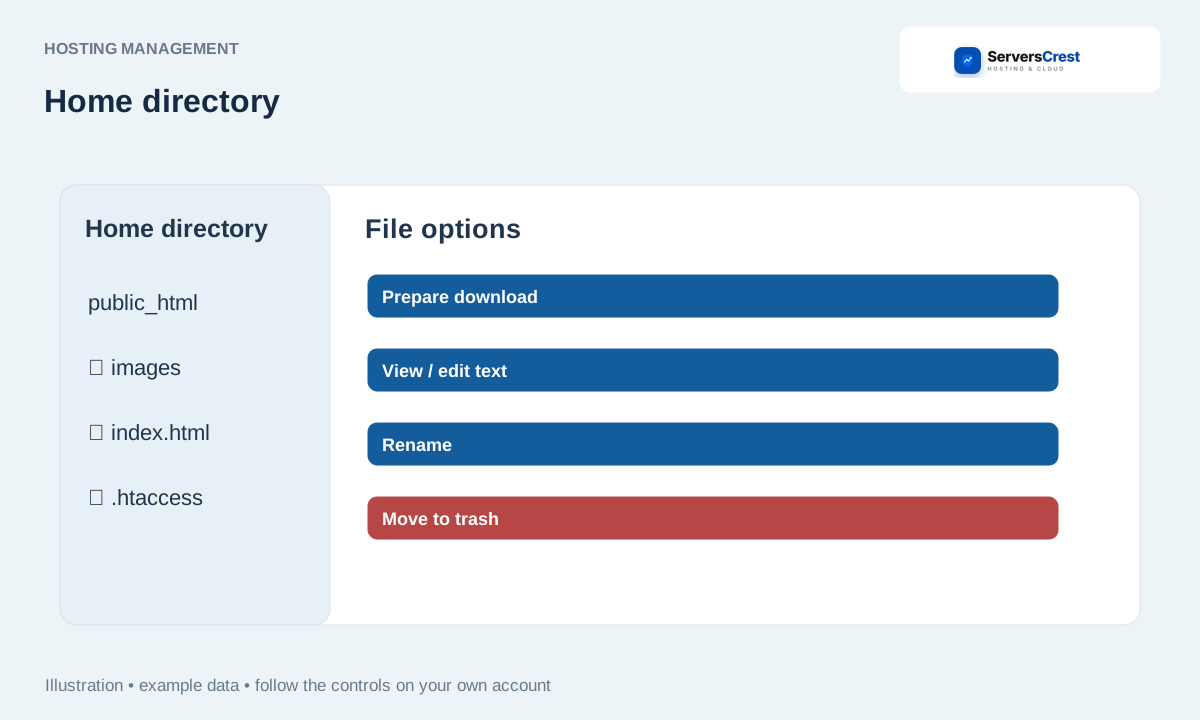
Open Files and find the domain folder
Open your hosting account from My Services and click Files. Read the current ~/ path; use Home directory or open a folder to reach your website. The ~/ path shows where you are. Open the website folder, not just the first folder in the list. Different domains may use different folders.
For a file you want to change, open File options. Click Prepare download, then Download. Use View / edit text to open a supported text file. Prepare download creates the download link; click Download as well to save the file to your computer.
Edit the text, tick Replace the contents of this file and click Save file. Make a small change and save once. Then open the website in another tab to see whether that change worked.
To add a file, use Upload a file and select a file no larger than 5 MiB. This upload does not overwrite an existing file with the same name. For a larger file or more upload options, use File Manager inside cPanel. Renaming a live file can break the website, so check a duplicate name before changing it.
Use Create file, Create directory, Rename or Move to trash for the separate action you need. Move to trash is for a file you really want to remove. For a folder with more than 200 entries, use cPanel to see the complete listing.
Which folder should you open?
Use the document root for the website you are changing. If you are unsure which folder belongs to an addon domain, check its domain settings in cPanel first. Do not assume that every domain on the account uses public_html.
Log in to cPanel from your service page · Log in to DirectAdmin from ServersCrest
Need help with this? Send us a ticket and tell us which page you reached and what happened.